





















COMPRESS
Now that we have our video exported, it’s time to open up HANDBRAKE and let it work it’s magic.
- First Step: To start, click SOURCE.
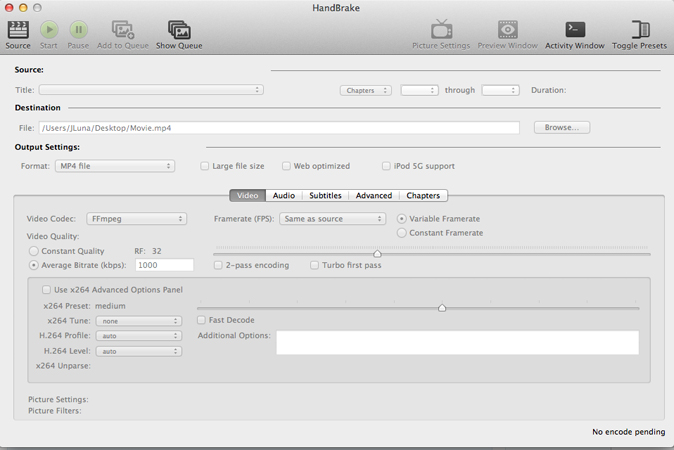
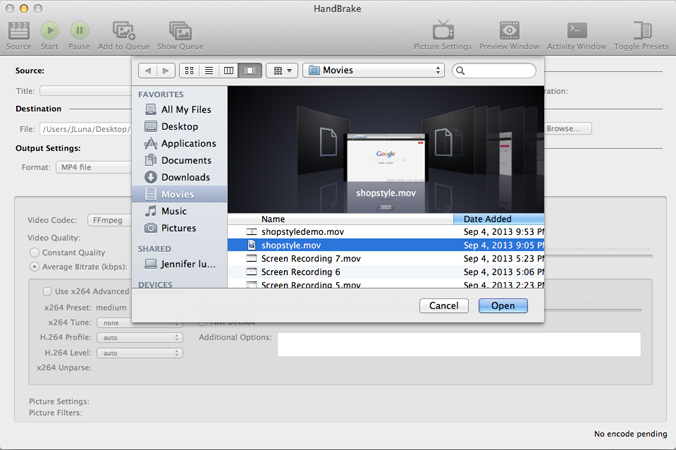
- Next select the video we want and click OPEN.
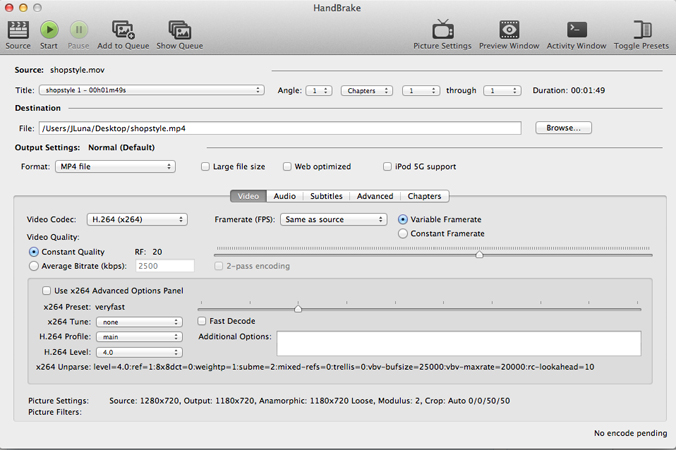
- The video will then be quickly scanned. Once it’s done, we’ll be able to play around with the settings before we begin to compress the video. Make sure under Output Settings the format is MP4 file. This will allow us to keep the quality of video, while making the file size smaller. Once we’ve made sure the format is correct, simply click START.
UPLOAD
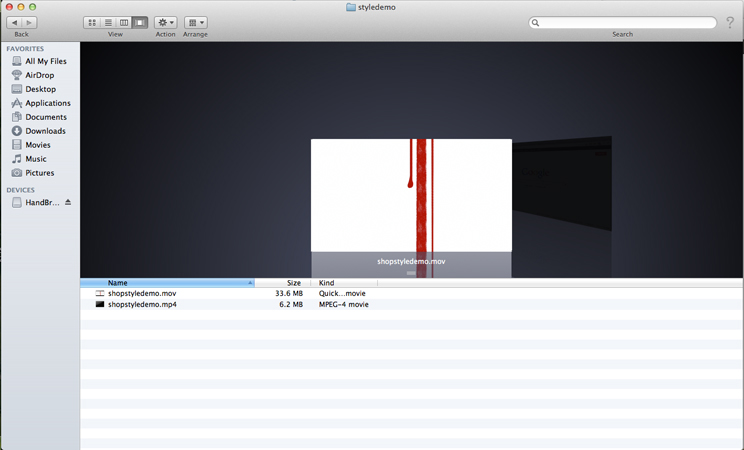
We should now have a nice, compressed video (double check to see if the quality is the same as the original). As we can see below, our tester video was greatly reduced in size simply by using HANDBRAKE and making it into mp4 format.
Now it’s time to upload to Youtube. There should definitely be an improvement on wait time and speed of our uploads. While using HANDBRAKE might seem like an added step, it’s actually going to reduce plenty headaches we’re sure to get waiting for our video to completely upload. We hope this how to guide was useful.
Page 2 of 2